IDE Setup
Create an MCP key in Settings, then register the IndexMind MCP server in Cursor, VS Code, or Claude Desktop.
Create an org-scoped key in the product, then register the built server in your editor. Prefer the Copy config snippets on Settings > MCP / IDE Integration. They already include your API URL and project ID.
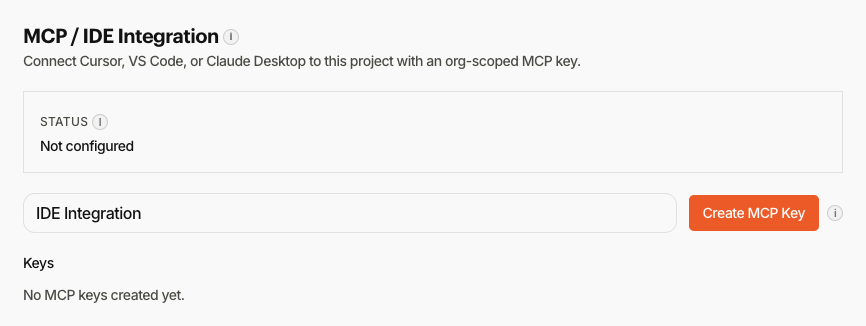
Replace /absolute/path/to/indexmind with the real path to this repo on your machine. Paste the MCP key into INDEXMIND_API_KEY. Never commit the raw key.
Cursor
Add the server in Cursor Settings > MCP, or create .cursor/mcp.json at the workspace root:
{
  "mcpServers": {
    "indexmind": {
      "command": "node",
      "args": [
        "/absolute/path/to/indexmind/packages/mcp-server/dist/index.js",
        "--api-url", "https://api.indexmind.ai",
        "--project-id", "YOUR_PROJECT_ID"
      ],
      "env": {
        "INDEXMIND_API_KEY": "imcp_YOUR_KEY"
      }
    }
  }
}
Cursor shows a connected status when the process starts cleanly.
VS Code
Use .vscode/mcp.json (or the equivalent MCP settings your VS Code build documents). The product Copy config control for VS Code uses a servers object. Confirm against current VS Code MCP docs if the key name differs.
Claude Desktop
Edit ~/Library/Application Support/Claude/claude_desktop_config.json (macOS) or %APPDATA%\Claude\claude_desktop_config.json (Windows) with the same mcpServers.indexmind shape as Cursor. Restart Claude Desktop after saving.
Passing additional flags
Append CLI flags to args as separate entries, for example "--readonly" and "--log-level", "debug". See Environment & Flags.
Prefer workspace-level MCP config (.cursor/mcp.json) so each repo can use its own --project-id and key.
Next steps
Run Health Checks once the IDE shows the server as connected.